# Variables hub

{% hint style="info" %}
This feature is under feature flag, contact your CSM to enable it on your workspace.

To access to the User variables, you have to contact your CSM to enable a User Attribute Management flag.
{% endhint %}

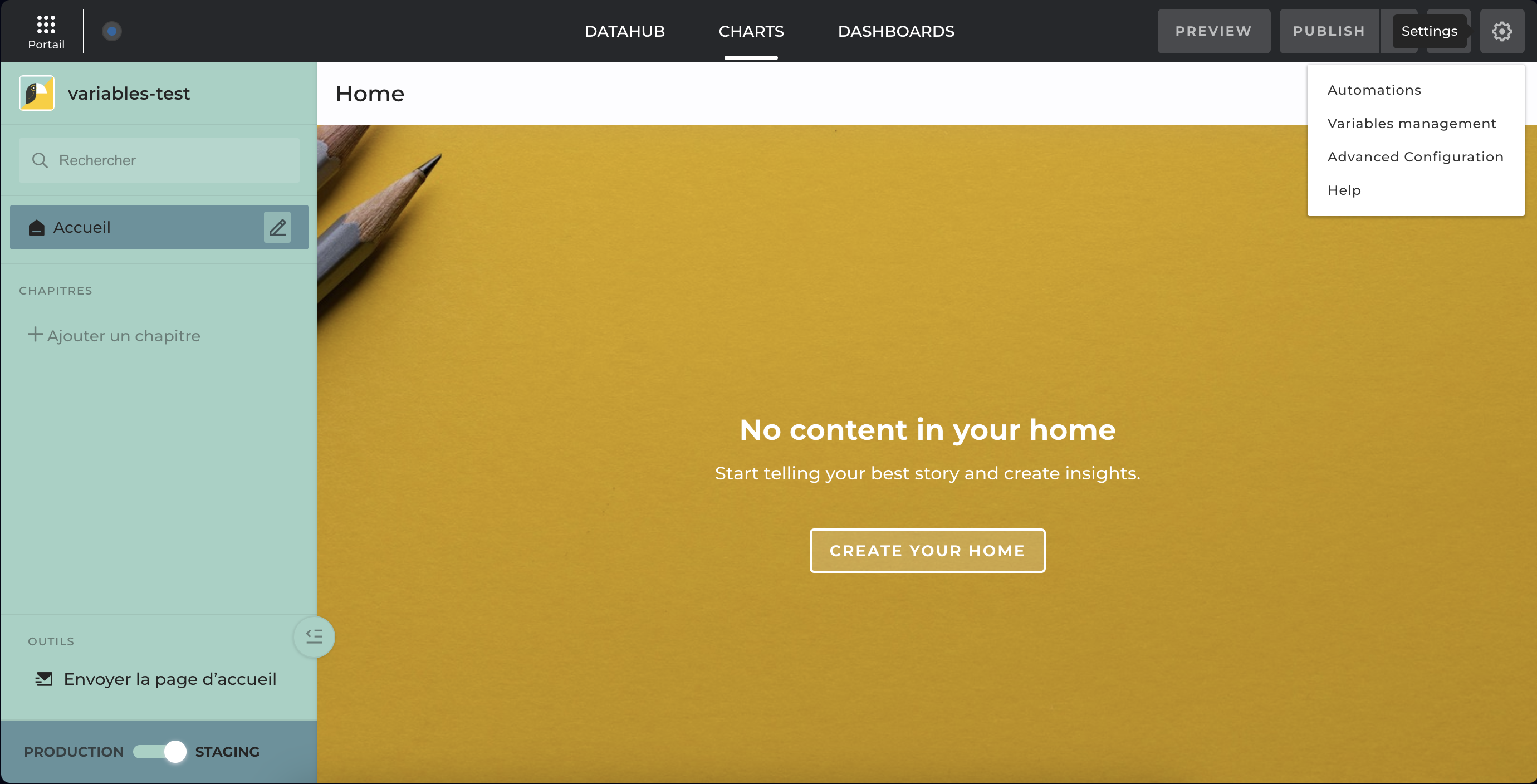
To manage variables, go in staging mode, in the settings menu of your app, as an app-builder, you have access to a new option: **Variables Management**.

<figure><img src="https://1809014303-files.gitbook.io/~/files/v0/b/gitbook-x-prod.appspot.com/o/spaces%2FZxYYf1KpgarKMgMsDCrw%2Fuploads%2Fgit-blob-29ff6bd08c088615841f790c0ed5625a6558a08a%2FCapture%20d%E2%80%99e%CC%81cran%202024-06-21%20a%CC%80%2011.50.29.png?alt=media" alt=""><figcaption><p>A new option in app settings: Variables management</p></figcaption></figure>

**Variables Hub**

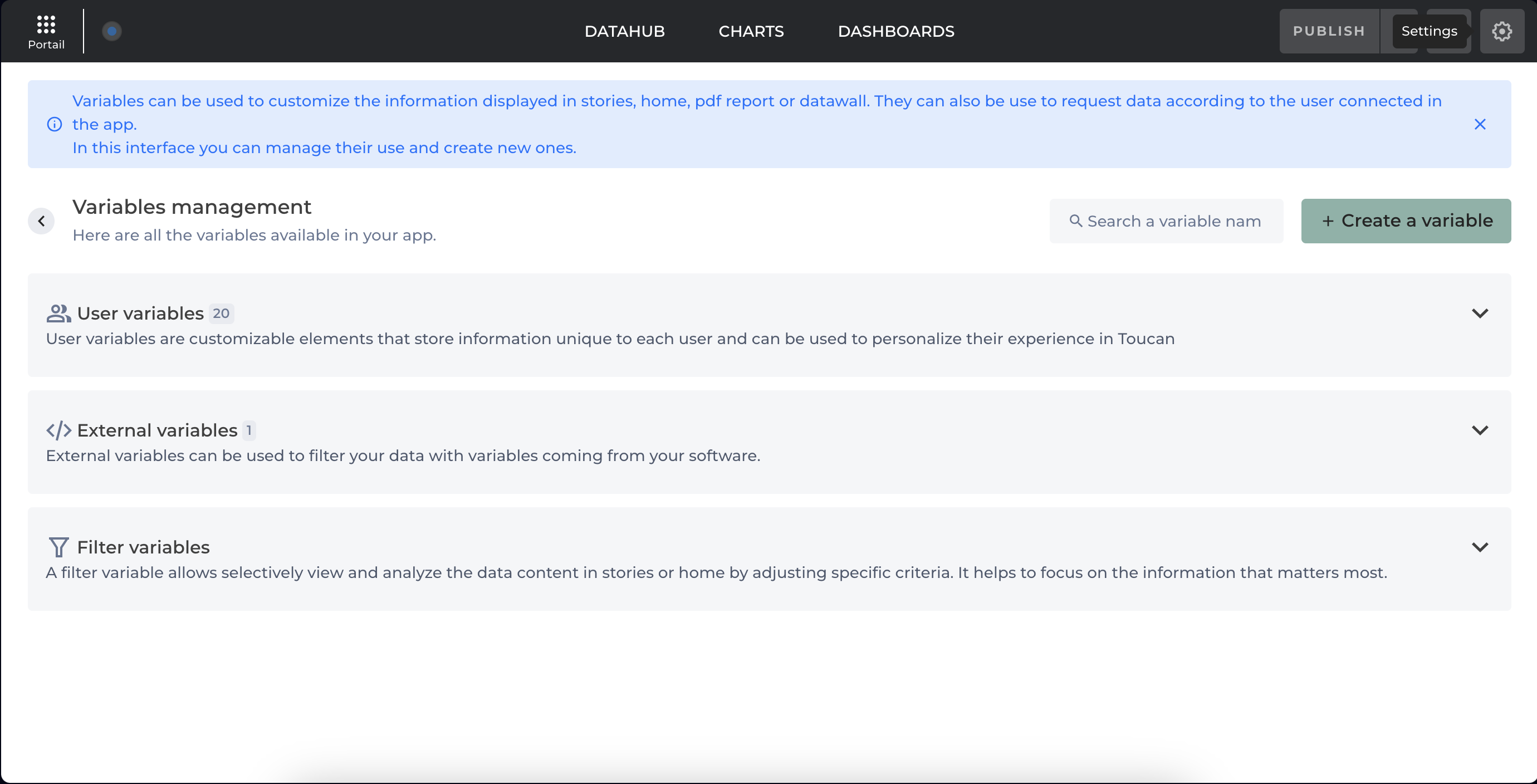
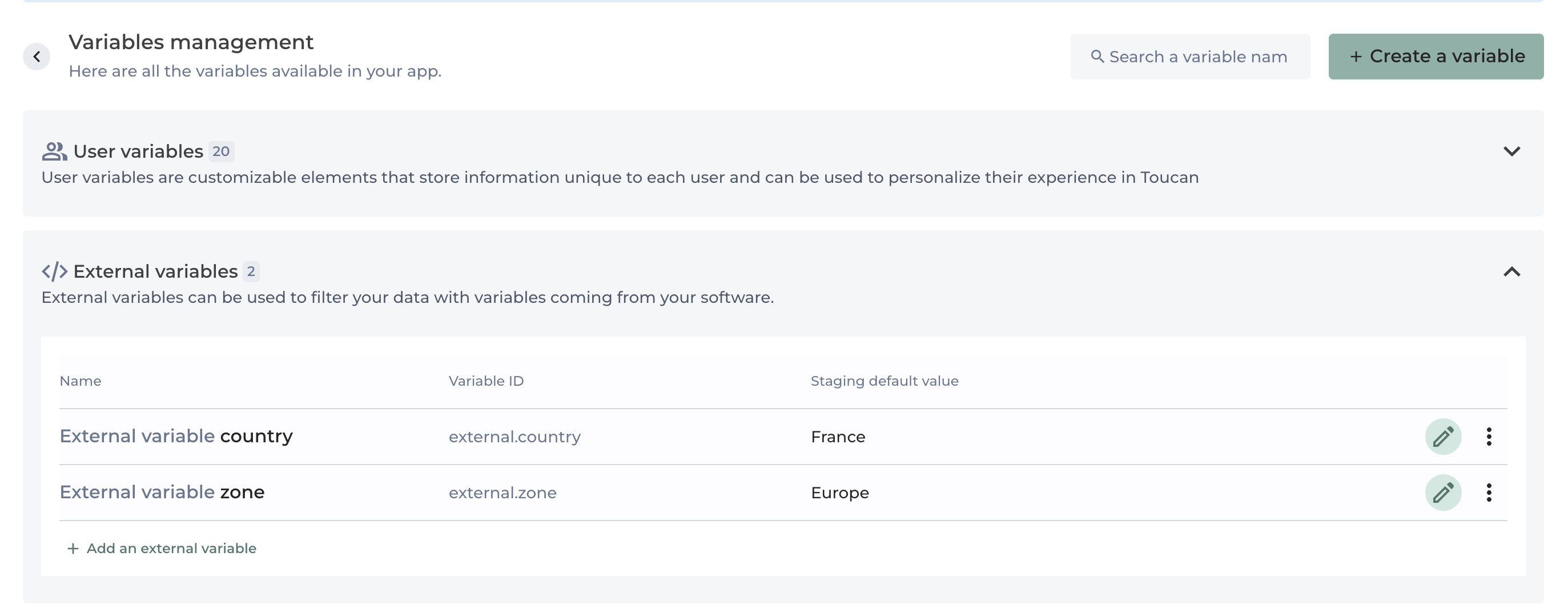
In the Variables Hub, you have access to variables listed in variable groups:

* **User Variables**
* **External Variables**
* **Filter Variables**

<figure><img src="https://1809014303-files.gitbook.io/~/files/v0/b/gitbook-x-prod.appspot.com/o/spaces%2FZxYYf1KpgarKMgMsDCrw%2Fuploads%2Fgit-blob-8d01f09346f5db71827d38ee96f0faf70630f50e%2FCapture%20d%E2%80%99e%CC%81cran%202024-06-21%20a%CC%80%2011.50.36.png?alt=media" alt=""><figcaption><p>Variable Hub</p></figcaption></figure>

**External variables** can be created directly in the Variables Hub.\
**User variables** and **filter variables** are created from the objects, user properties, and [filters](https://docs-v3.toucantoco.com/visualizations-and-layouts/apps/filters) that you create in Toucan.

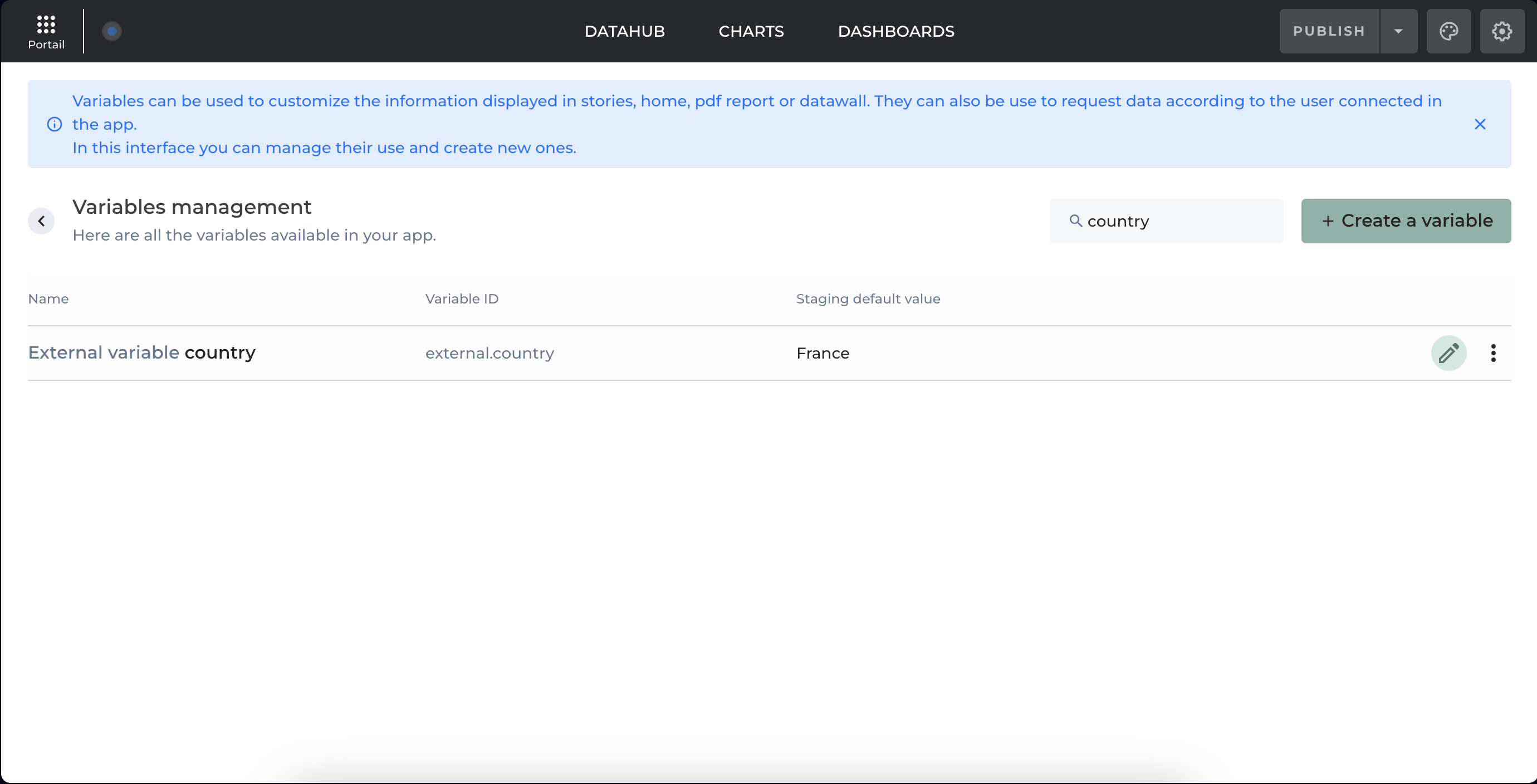
**Search a Variable**

It’s possible to search for variables by using their name and the search component.

<figure><img src="https://1809014303-files.gitbook.io/~/files/v0/b/gitbook-x-prod.appspot.com/o/spaces%2FZxYYf1KpgarKMgMsDCrw%2Fuploads%2Fgit-blob-cdf3650156c8163c119b58eed8c65fd54bc1a129%2FCapture%20d%E2%80%99e%CC%81cran%202024-06-21%20a%CC%80%2011.53.19.png?alt=media" alt=""><figcaption><p>Search a variable</p></figcaption></figure>

**Add a Variable**

Adding a variable is possible for the following variable groups:

* **External Variables**

To add a new variable, follow these steps:

1. **Create a new Variable:**

   * Click on the `Create a variable` button at the top right of your screen
   * or in the External Variables section, click on the `+ Add an external variable` link within the expanded section.

   <figure><img src="https://1809014303-files.gitbook.io/~/files/v0/b/gitbook-x-prod.appspot.com/o/spaces%2FZxYYf1KpgarKMgMsDCrw%2Fuploads%2Fgit-blob-cdf3650156c8163c119b58eed8c65fd54bc1a129%2FCapture%20d%E2%80%99e%CC%81cran%202024-06-21%20a%CC%80%2011.53.19.png?alt=media" alt=""><figcaption><p>Add a new variable</p></figcaption></figure>
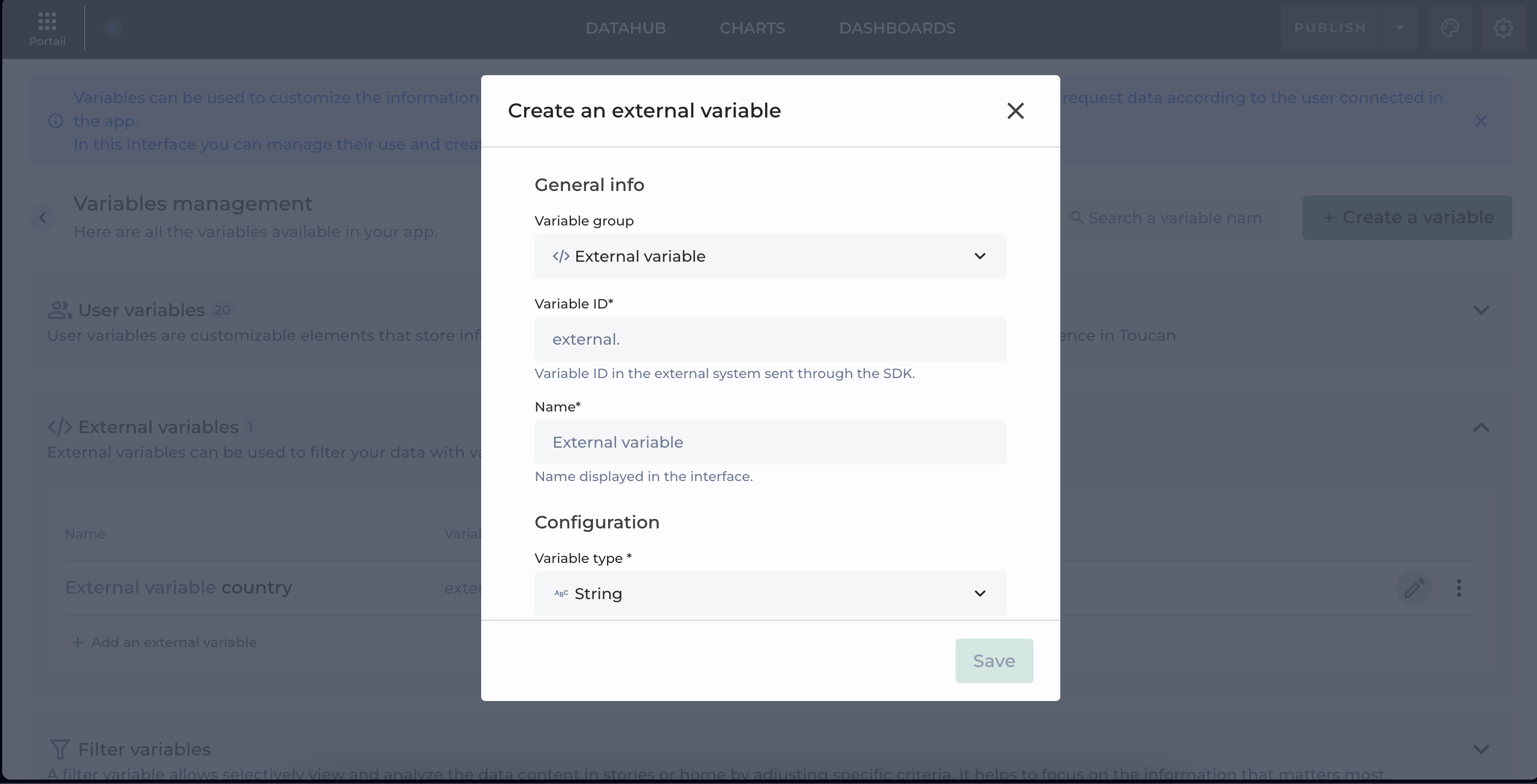
2. **Fill in the Modal Form:**

   * if you click on `Create a new variable button` A modal window will open where you can choose the variable group where you want to add the new variable. Currently, the available option is "External variable".
   * If you click on `+ Add an external variable` link you will be redirected to the next section of the modal l where you need to fill in the following information:
     * **Variable ID:** (mandatory) A unique identifier for the variable.
     * **Variable Name:** (mandatory) The name of the variable.
     * **Staging Default Value:** (optional) You can provide a default value for staging. The possible types for this field are:
       * `String`
       * `Number`
       * `Date`
       * `Boolean`

   <figure><img src="https://1809014303-files.gitbook.io/~/files/v0/b/gitbook-x-prod.appspot.com/o/spaces%2FZxYYf1KpgarKMgMsDCrw%2Fuploads%2Fgit-blob-c8d3c8e77f9bd47cb0afdd40c188d231a6fa442d%2FCapture%20d%E2%80%99e%CC%81cran%202024-06-21%20a%CC%80%2011.56.55.png?alt=media" alt=""><figcaption><p>Fill the modal form to add new variables to your product</p></figcaption></figure>
3. **Save the new Variable:**
   * After filling in the required fields, click on the "Save" button to add the variable.
   * The modal will close, and you will see the new variable listed in the corresponding variable group.

#### Example

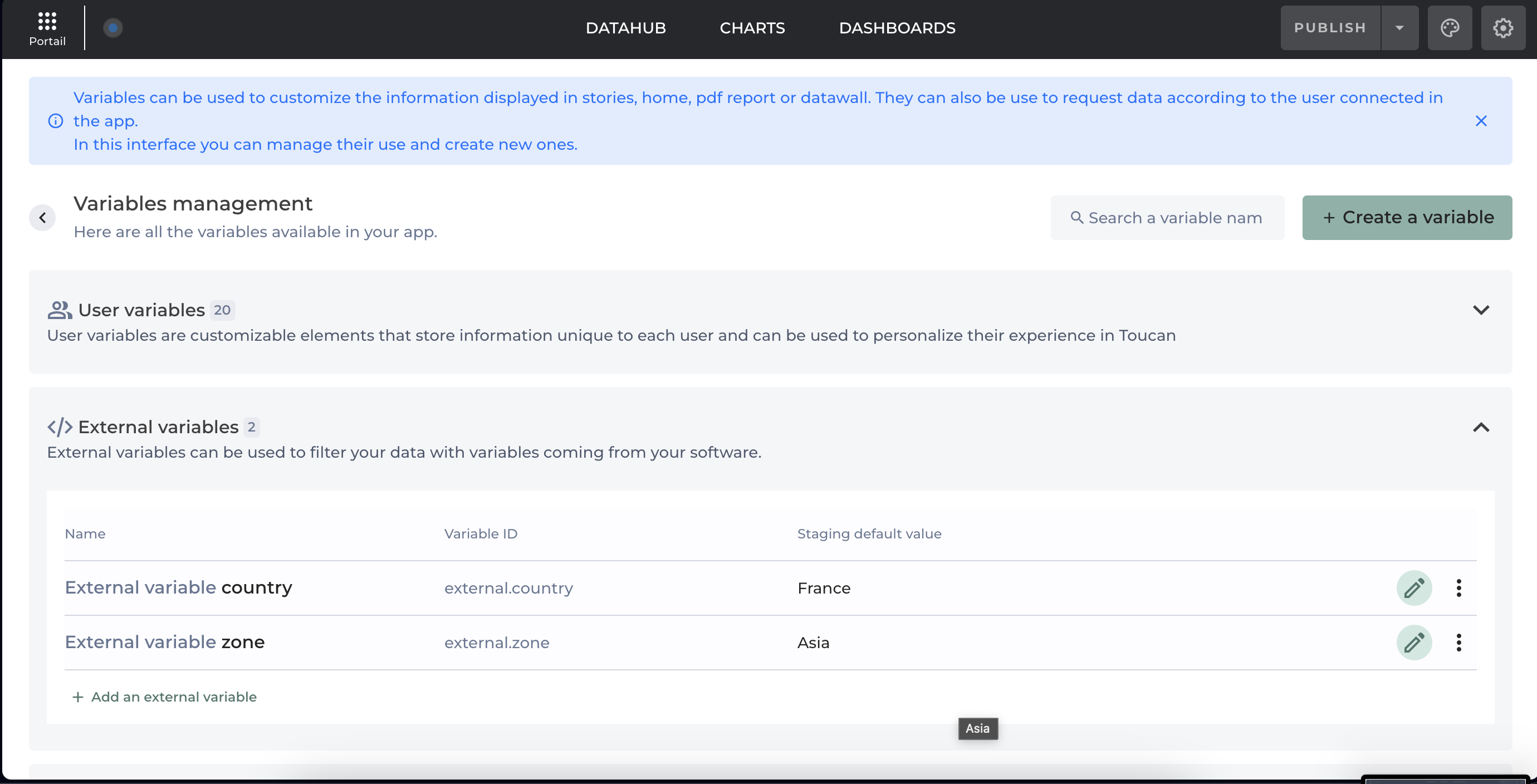
In the example shown in the image, an external variable named "External variable country" with the variable ID `external.country` has been created with a default value set to "France".

<figure><img src="https://1809014303-files.gitbook.io/~/files/v0/b/gitbook-x-prod.appspot.com/o/spaces%2FZxYYf1KpgarKMgMsDCrw%2Fuploads%2Fgit-blob-888590f7298e296d0d8a29704ee47d1ed93e2989%2FCapture%20d%E2%80%99e%CC%81cran%202024-06-21%20a%CC%80%2011.57.28.png?alt=media" alt=""><figcaption><p>Add new external variables</p></figcaption></figure>

**Edit a Variable**

Editing a variable allows you to change the default value for a given variable. This is possible for the following variable groups:

* **External Variables**
* **User Variables**

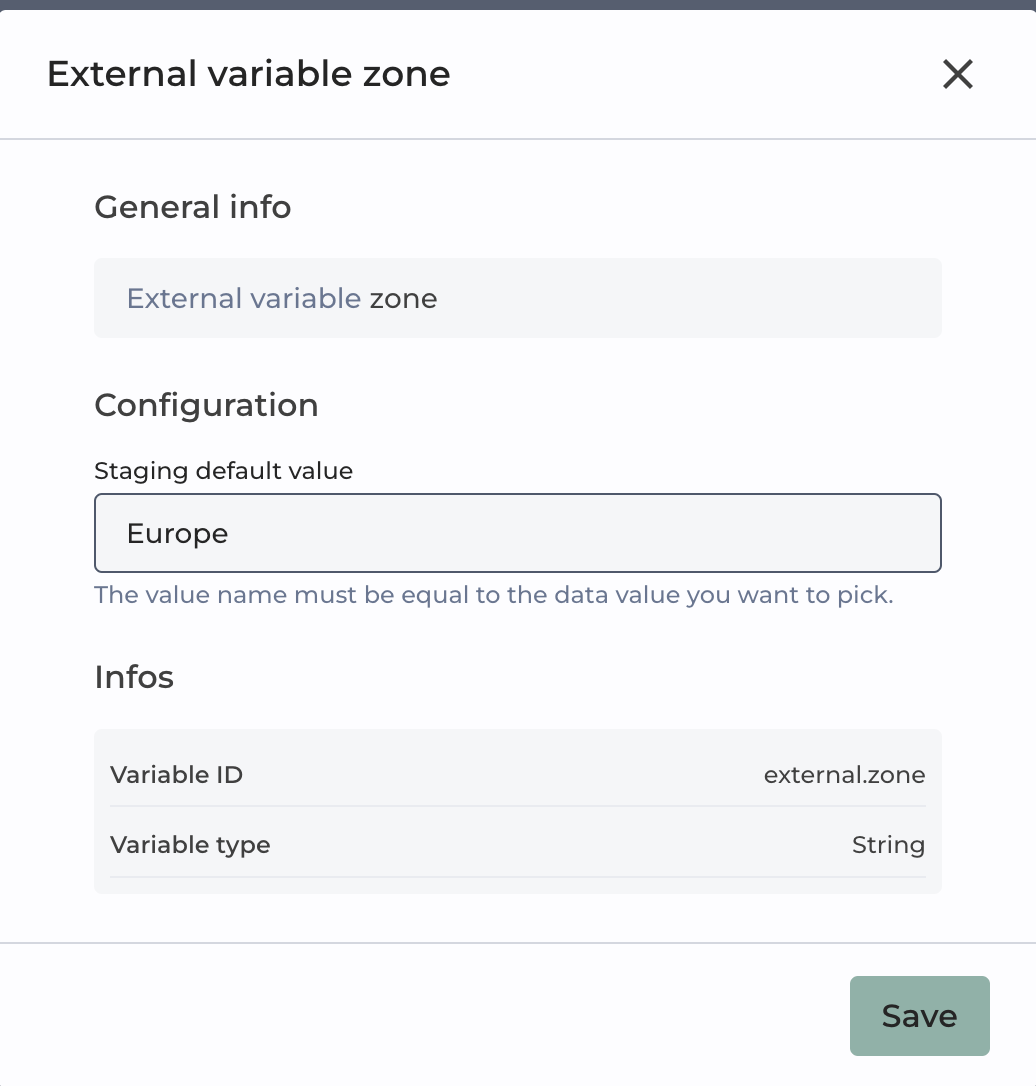
You can edit by clicking on the Edit icon on the row corresponding to the variable.

<figure><img src="https://1809014303-files.gitbook.io/~/files/v0/b/gitbook-x-prod.appspot.com/o/spaces%2FZxYYf1KpgarKMgMsDCrw%2Fuploads%2Fgit-blob-75ae9a6c17d42a1536e1d74c277cc9da39597356%2FCapture%20d%E2%80%99e%CC%81cran%202024-06-21%20a%CC%80%2012.12.41.png?alt=media" alt=""><figcaption><p>Modify the staging default value from Asia to Europe</p></figcaption></figure>

Modify the default staging value and click on **Save**.

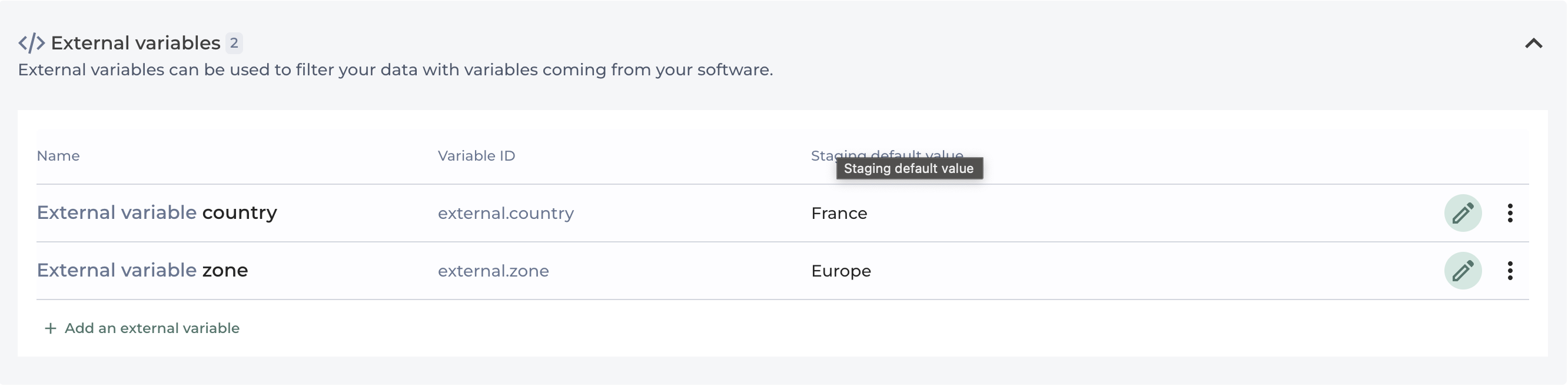
<figure><img src="https://1809014303-files.gitbook.io/~/files/v0/b/gitbook-x-prod.appspot.com/o/spaces%2FZxYYf1KpgarKMgMsDCrw%2Fuploads%2Fgit-blob-2bd9a356cde288a81bfb45633b2e32e18aa2f2a9%2FCapture%20d%E2%80%99e%CC%81cran%202024-06-21%20a%CC%80%2012.12.57.png?alt=media" alt=""><figcaption><p>The new staging value is displayed after saving</p></figcaption></figure>

<details>

<summary>Date format for variable type date</summary>

When working with date variables, the expected format for date variables is the EN/US format:

```
yyyy-MM-dd HH:mm:ss
```

or you can also use the FR format

```
dd-MM-yyyy HH:mm:ss
```

**Format Explanation:**

* dd: Day of the month (two digits)
* MM: Month (two digits)
* yyyy: Year (four digits)
* HH: Hour in 24-hour format (two digits)
* mm: Minutes (two digits)
* ss: Seconds (two digits)

**Example:**

A correctly formatted date would look like this:

```
2000-11-25 04:00:00
```

or

```
25-11-2000 04:00:00
```

This represents November 25, 2000, at 4:00:00 AM.

</details>

**Delete a Variable**

Deleting a variable allows you to remove a given variable. This is possible for the following variable group:

* **External Variables**

To delete a variable:

1. On the line corresponding to the variable you wish to delete, click on the three-button icon.\
   ![](https://1809014303-files.gitbook.io/~/files/v0/b/gitbook-x-prod.appspot.com/o/spaces%2FZxYYf1KpgarKMgMsDCrw%2Fuploads%2Fgit-blob-228bf57b17fd4ad89aad277f20ed8426d1175980%2FCapture%20d%E2%80%99e%CC%81cran%202024-06-21%20a%CC%80%2012.15.48.png?alt=media)
2. A new menu appears with the label `Delete`. Click on this option.
3. A dialog box opens, asking you to confirm that you want to delete the variable. By clicking **OK**, the dialog box closes and the line with the deleted variable disappears.\
   ![](https://1809014303-files.gitbook.io/~/files/v0/b/gitbook-x-prod.appspot.com/o/spaces%2FZxYYf1KpgarKMgMsDCrw%2Fuploads%2Fgit-blob-8966256e1d24352cc85bd1dbbfea9bba51e78fd1%2FCapture%20d%E2%80%99e%CC%81cran%202024-06-21%20a%CC%80%2012.16.18.png?alt=media)

<figure><img src="https://1809014303-files.gitbook.io/~/files/v0/b/gitbook-x-prod.appspot.com/o/spaces%2FZxYYf1KpgarKMgMsDCrw%2Fuploads%2Fgit-blob-eb00208fac81b0eb146c1adcd1e90c2f62a93e6c%2FCapture%20d%E2%80%99e%CC%81cran%202024-06-21%20a%CC%80%2012.16.33.png?alt=media" alt=""><figcaption><p>After delete the variable is no longer see in the varaibles section corresponding</p></figcaption></figure>

**Use a Variable**

We will dig an example of how you can now use variables in the product,.

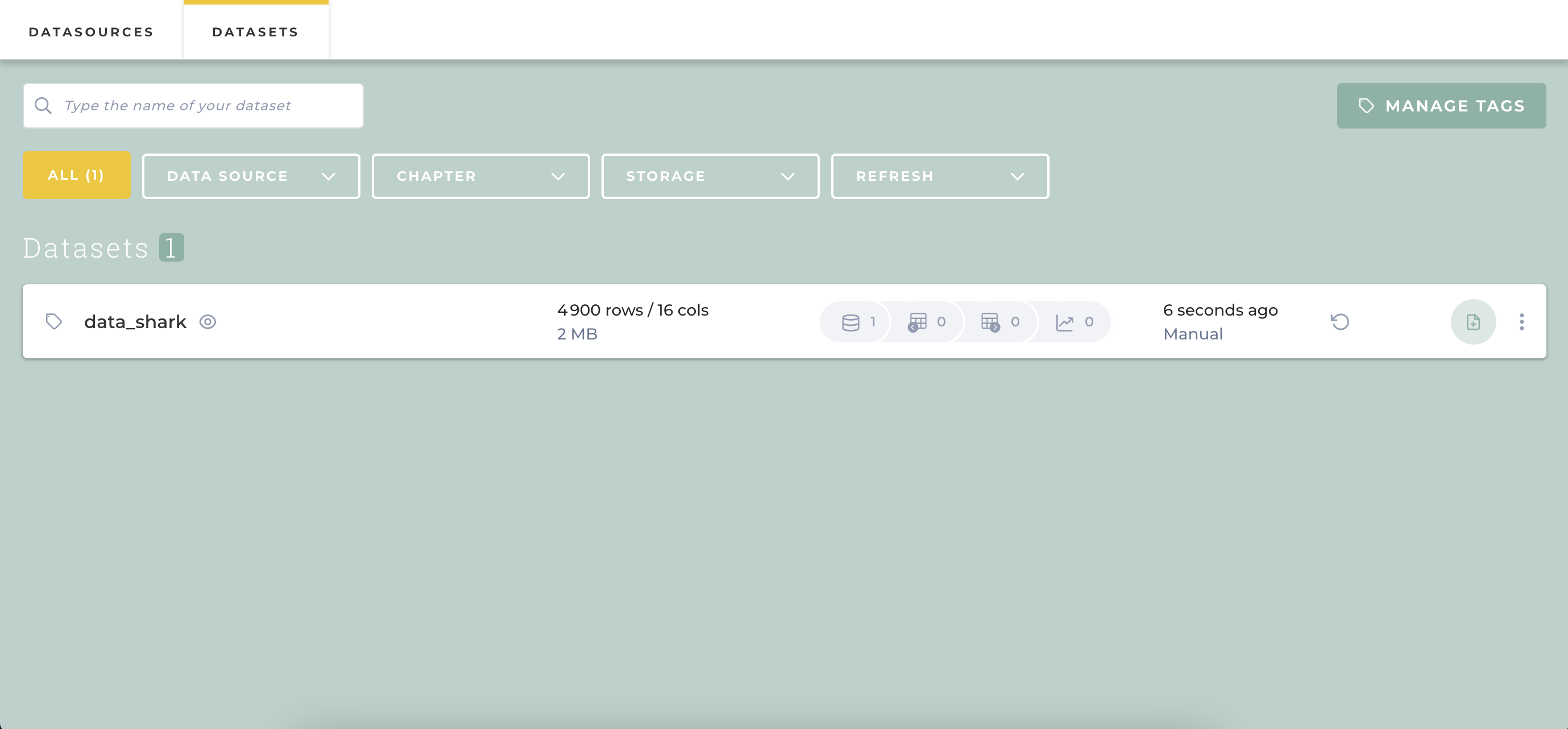
If you go on the Datahub, when you create or edit a dataset,

<figure><img src="https://1809014303-files.gitbook.io/~/files/v0/b/gitbook-x-prod.appspot.com/o/spaces%2FZxYYf1KpgarKMgMsDCrw%2Fuploads%2Fgit-blob-ad9ce037df76192c894c72adb1c1984fe7127a19%2FCapture%20d%E2%80%99e%CC%81cran%202024-06-21%20a%CC%80%2012.21.17.png?alt=media" alt=""><figcaption></figcaption></figure>

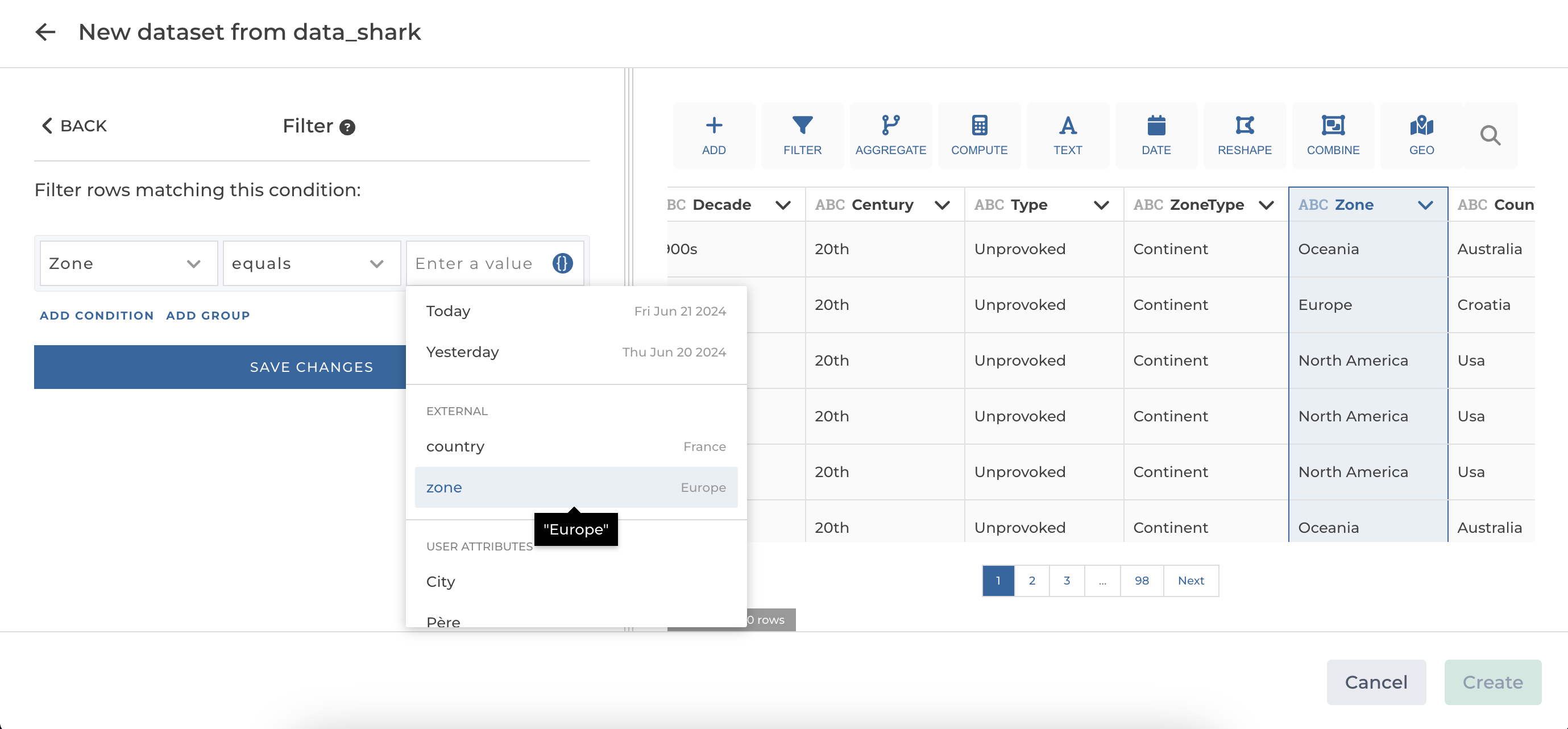
If you add for example a filter rows step to filter your dataset by clicking on the chip variable to display a menu containing all the variables of your app.

<figure><img src="https://1809014303-files.gitbook.io/~/files/v0/b/gitbook-x-prod.appspot.com/o/spaces%2FZxYYf1KpgarKMgMsDCrw%2Fuploads%2Fgit-blob-393cda2fefe745b771bb6b0eeeabf00c922979dc%2FCapture%20d%E2%80%99e%CC%81cran%202024-06-21%20a%CC%80%2012.22.04.png?alt=media" alt=""><figcaption><p>You have access to a menu that lists all the variables existing on your application</p></figcaption></figure>

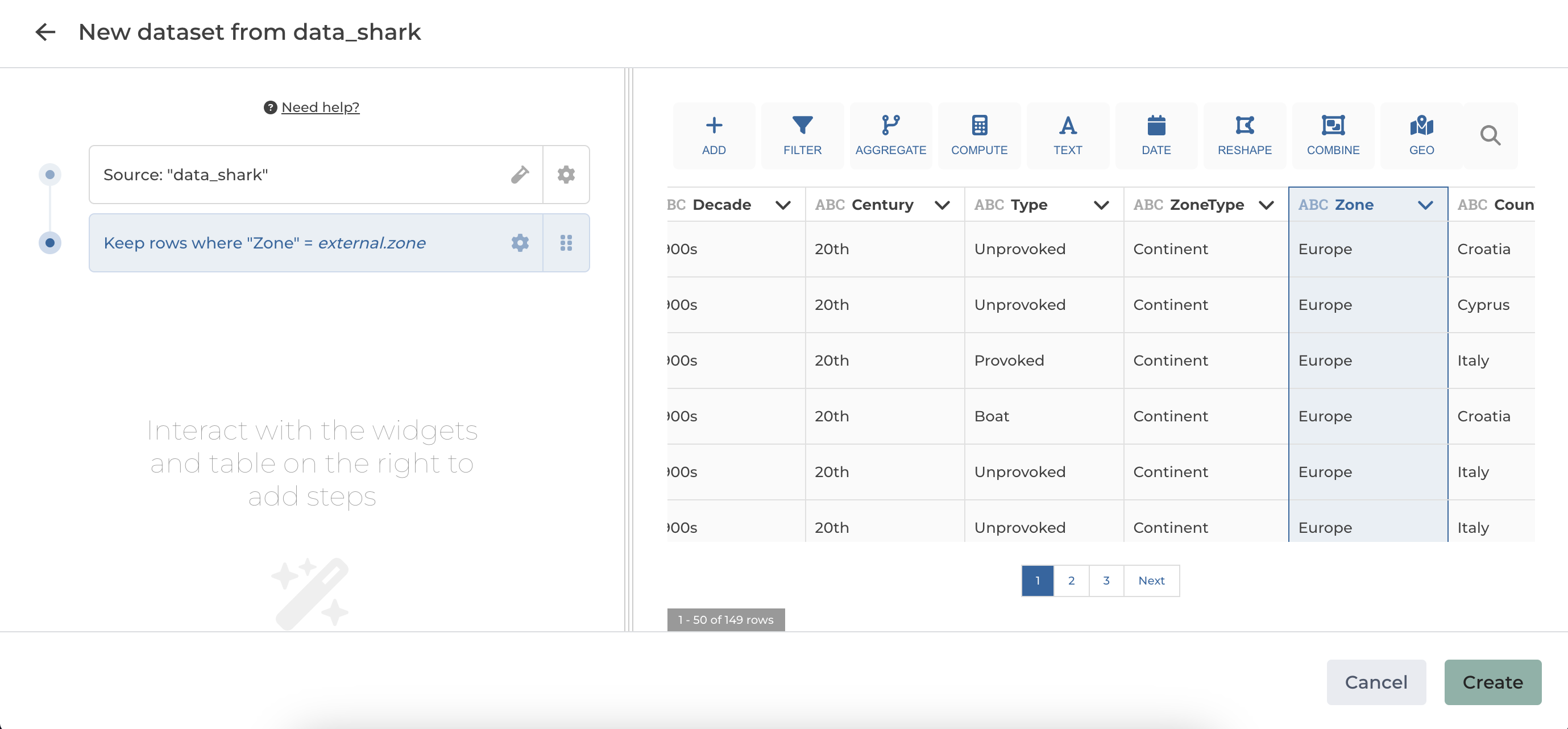
Choose one of the variable, and the dataset will be filtered with the default staging value corresponding to the variable.

<figure><img src="https://1809014303-files.gitbook.io/~/files/v0/b/gitbook-x-prod.appspot.com/o/spaces%2FZxYYf1KpgarKMgMsDCrw%2Fuploads%2Fgit-blob-2946294ddec16a35057663d02b83c38bba853331%2FCapture%20d%E2%80%99e%CC%81cran%202024-06-21%20a%CC%80%2012.22.24.png?alt=media" alt=""><figcaption><p>The dataset is filtered with the staging default value of the variable</p></figcaption></figure>

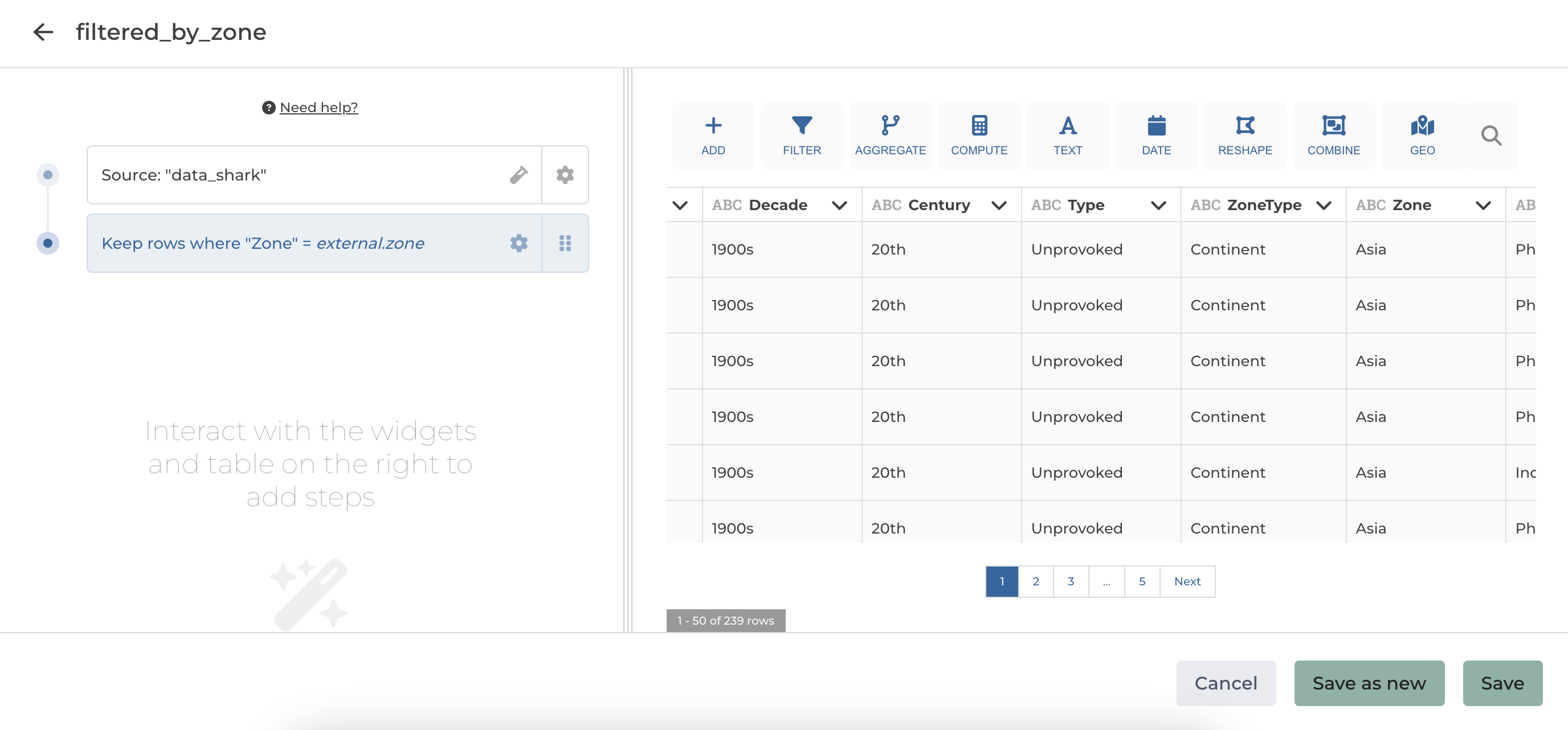
If you go to the Variables Hub and change the default staging value of the variable you used to previously filter the dataset, and then return to the dataset by clicking on edit, the dataset will be filtered with the new default staging value.

<figure><img src="https://1809014303-files.gitbook.io/~/files/v0/b/gitbook-x-prod.appspot.com/o/spaces%2FZxYYf1KpgarKMgMsDCrw%2Fuploads%2Fgit-blob-039a49ccaf9967a6c30c66dd54d118e9fcf8827e%2FCapture%20d%E2%80%99e%CC%81cran%202024-06-21%20a%CC%80%2012.23.45.png?alt=media" alt=""><figcaption><p>The new default staging value is taken in account to filter the dataset</p></figcaption></figure>