> For the complete documentation index, see [llms.txt](https://docs-v3.toucantoco.com/llms.txt). Markdown versions of documentation pages are available by appending `.md` to page URLs; this page is available as [Markdown](https://docs-v3.toucantoco.com/data-management-in-datahub/datasources-in-toucan/managing-files/using-advanced-file-settings.md).
# Advanced file settings
## Overview
We all want to drop a file in Toucan (excel, CSV…) and directly use it in our charts! Most of the time, the file appears perfectly fine on Toucan.
However, let me show you some very useful tricks and directives that will help you if your datasource doesn’t appear properly in the tool.
Sometimes, even when you applied all the requirements for a good flat file as expected by Toucan, you might need to customize the data interpretation done by Toucan to transform a datasource into a dataset.
## Column type
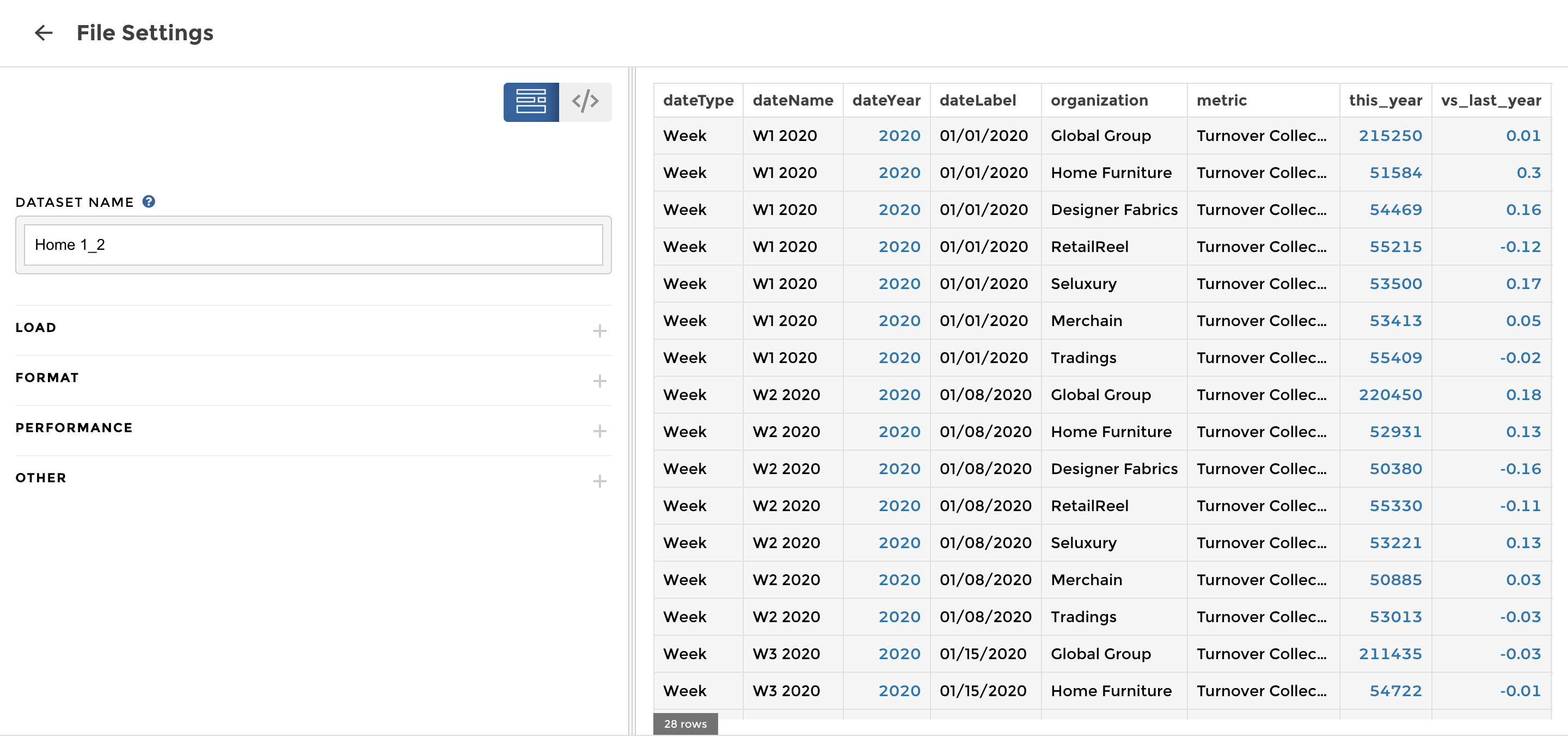
*The first tip to remember for both Excel and CSV files* is that in Toucan, numbers appear in blue, and the strings are in black. When loading a file, some numbers might not be recognized as numbers, for instance.
It is never too late! You can easily pick your datasource in the data explorer and previsualize it.
You have 2 different ways to do it:
* With the visual interface (in the "CONVERT VALUES" field): you can add your dtype parameter, please write it in a JSON format. For example: `{ "labels": "str" }`
* With the code mode interface: you can use the function dtype, followed by the name of the column and by the type. For example: `dtype: labels : 'str'`
## Dates
For some file types, like Excel or Google Sheets, Toucan should understand that some columns contain dates. But for others, like CSVs, there is no way to find out automatically.
No worries, it’s super easy to tell Toucan which column to parse as a date: just tick the box “parse columns as dates” and indicate the names of dates columns.

## Decimals
*For CSV files:* another quite tricky situation is when your file is formatted with decimal separators like the comma (`,`) instead of the international standard (the dot `.`).
But again, no problem for Toucan; you have two different ways to indicate it:
* With the visual interface: you can add your decimal parameter, in the "DECIMAL" field. Just write the desired character.
* With the code mode interface: you can use the function decimal, followed by the character. For example: `decimal: ","`
### Separators
*For CSV files:* Last trick here concerns the format of the file. As it’s very common in CSV files.
We all know that sometimes when we open our CSV file, all the data is not separated into different columns, and you need to apply your separator directly in Excel. This also happens in Toucan. No worries, I got a solution 🙏
You have two different ways to do it:
* With the visual interface: you can add your separator parameter, in the "SEP" field. Just write the desired character.
* With the code mode interface: you can use the function sep, followed by the character. For example: `sep: ","`
💡 Note that these options come from the panda's library we use to interpret the files. If you want to check all the options available, you can find them under the following links:
* for CSV:
* for excel:
Let’s go!
---
# Agent Instructions
This documentation is published with GitBook. GitBook is the documentation platform designed so that both humans and AI agents can read, navigate, and reason over technical content effectively. Learn more at gitbook.com.
## Querying This Documentation
If you need additional information that is not directly available in this page, you can query the documentation by asking a question.
Perform an HTTP GET request on the following URL with the `ask` and `goal` query parameters:
```
GET https://docs-v3.toucantoco.com/data-management-in-datahub/datasources-in-toucan/managing-files/using-advanced-file-settings.md?ask=&goal=
```
`ask` is the immediate question: it should be specific, self-contained, and written in natural language.
`goal` is what the user is ultimately trying to achieve, the reason they need the answer. Sharing it helps GitBook give you a better, more relevant answer. A goal is most helpful when it describes the outcome the user wants rather than restating the question. For example, with `ask=how do I create an API token`, a goal like `automate deployments from our CI pipeline` lets GitBook tailor the answer to that use case.
The response will contain a direct answer to the question and relevant excerpts and sources from the documentation.
Use this mechanism when the answer is not explicitly present in the current page, you need clarification or additional context, or you want to retrieve related documentation sections.